Log work as the agent
Add a worklog and adjust the remaining estimate, attributed to the configured agent.
Open the Time Tracking tab
In the Act as Agent modal, switch to the Time Tracking tab.
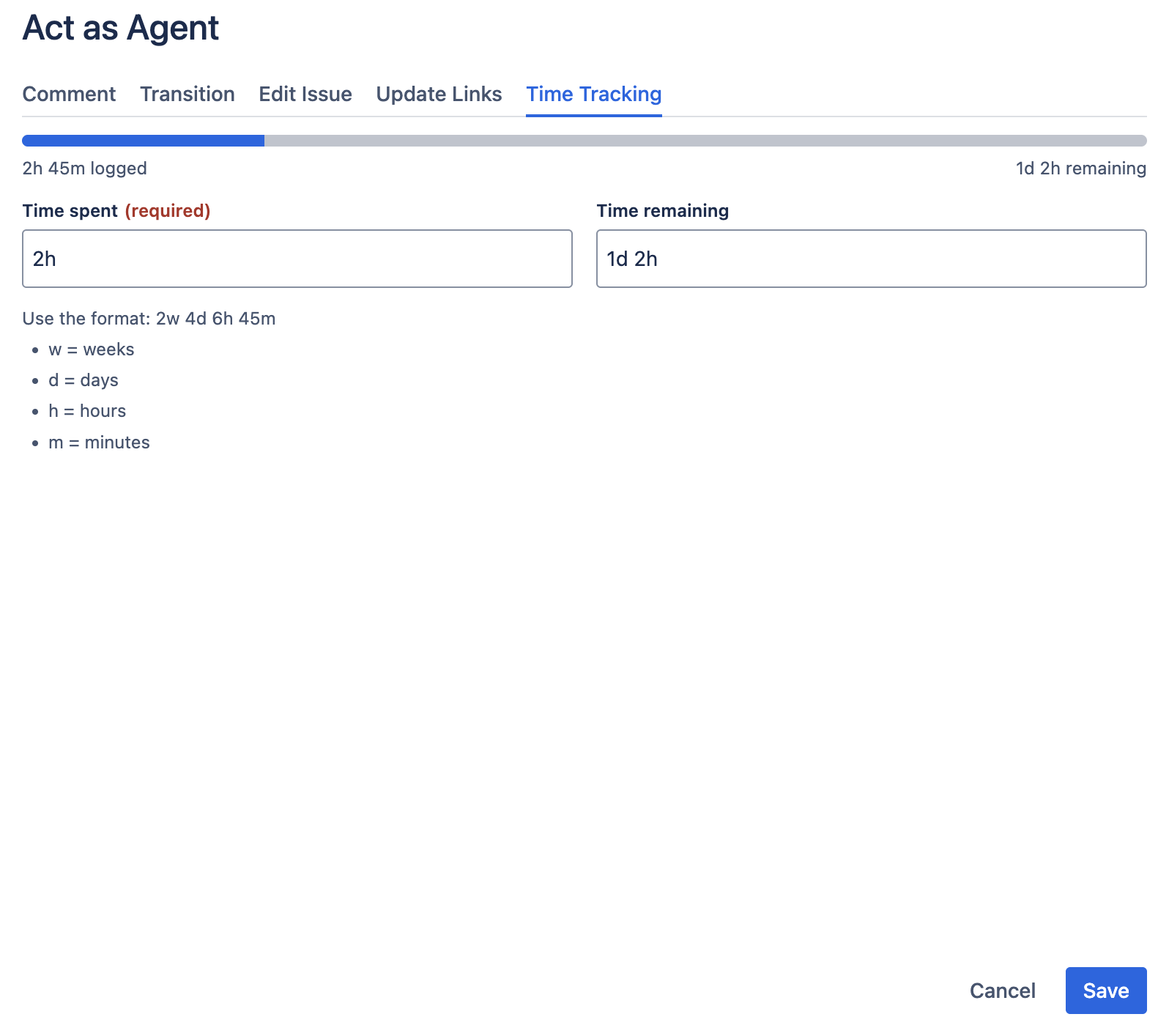
What the progress bar shows
At the top of the tab, a horizontal progress bar visualizes the issue's time tracking state:
- Blue segment: time already logged (done work).
- Orange segment: overwork. Time logged plus remaining that exceeds the original estimate.
- Gray segment: remaining estimate.
Below the bar, two labels: total time logged and remaining. Hovering the bar reveals an over/under delta against the original estimate, when present.
Fill in the worklog
Two inputs:
| Input | Required? | Behavior |
|---|---|---|
| Time spent | Yes | The new worklog entry's duration. Format: 2w 4d 6h 45m, any combination of weeks, days, hours, minutes. |
| Time remaining | No | Pre-filled with the current remaining estimate. Leave it as-is to preserve, or enter a new value to replace it. Empty means leave the existing remaining estimate untouched. |
Both fields validate format on the fly; an invalid format highlights the input and disables Save.
Save
Click Save. The worklog is added, the remaining estimate is updated (if provided), and the modal closes. The progress bar in the issue's normal time tracking widget updates to reflect the change.